
How dictionaries work
A dictionary is your own word list for one language. You add the words you want to learn, practise them with games, keep useful links beside them and watch your progress. This guide walks through each step, in the app and on the website.
1. Create a dictionary
Make one dictionary per language you're learning, or several per language if you like to keep topics apart (travel, work, a book you're reading). There's no limit on how many you have.
In the app
- Open Dictionaries and tap Add New Dictionary.
- Give it a Dictionary name that tells you what's inside, and an optional Description.
- Choose the Language you're studying and your Native Language, the one your translations will be in.
- Tap Save.
One dictionary is your default: it's the one the app opens and adds words to first. Change it with Set as Default. The list can be grouped by name, by the language you're learning or by your native language.
On the website
- Sign in and open My dictionaries (it's in the top bar).
- Click New dictionary, fill in Name, Language you're learning and Translated into, and save.
- Use Make default, Edit and Delete on each card.
At the moment the dictionaries you keep on the website and the ones in the app are kept apart.
2. Add words
A word can have more than one meaning, and several words can share one. Each entry holds the word, its translations and, if you want, its type, gender, article and a note.
In the app
- Open a dictionary and tap Add New Word.
- Type the Original word, the word in the language you're studying, and press + or Enter. Add another spelling the same way if it has one (for example app and application).
- Under Translations, type each meaning and press + or Enter after each one.
- Pick the Type of word (noun, verb, adjective…). For a noun you can set its Gender and Articles; for a verb, whether it's regular.
- Add a Note/Meaning if it helps you remember, then tap Save, or Save and another word to keep going.
You can also search for a word in the language you're learning, read its meaning, hear it pronounced and add it to a dictionary in one tap, or download a ready-made dictionary from the dictionaries shop and start from its words.
On the website
- In My dictionaries, click Add words on a card (or open the dictionary and click Add word).
- Fill in Word and Translations. Put each translation on its own line, or separate them with a semicolon.
- Optionally choose the Type, Gender and Article, and add a Note.
- Click Save, or Save and add another to add the next word straight away.
Reading a post? The words underlined in it can be tapped for their meaning and translations, and the post's word list shows them side by side, so you can pick the ones worth keeping.
3. Practise with games
Every dictionary has a Games tab in the app. The games are built from that dictionary's words, so you practise exactly what you chose to learn, and every round earns experience points.
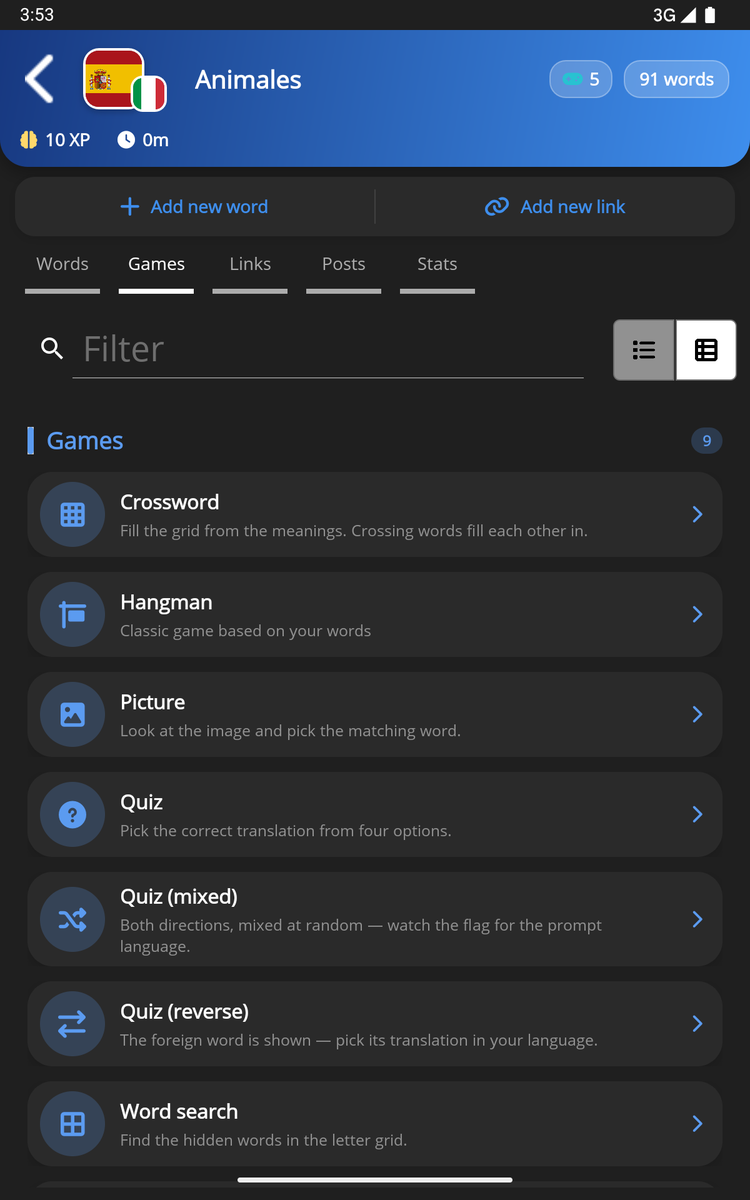
- Five words to start. A dictionary needs at least five words before its games appear.
- Some games need more. The sentence games (Sentence Builder, Fill the Gap) need sentences; Picture needs words with images; Gender needs nouns with a gender; Listening needs words with recordings and a connection; the Conjugation Challenge uses the verbs you've saved.
- Lives. Games use lives. Free accounts are topped back up to five every day; Premium has no lives to run out of.
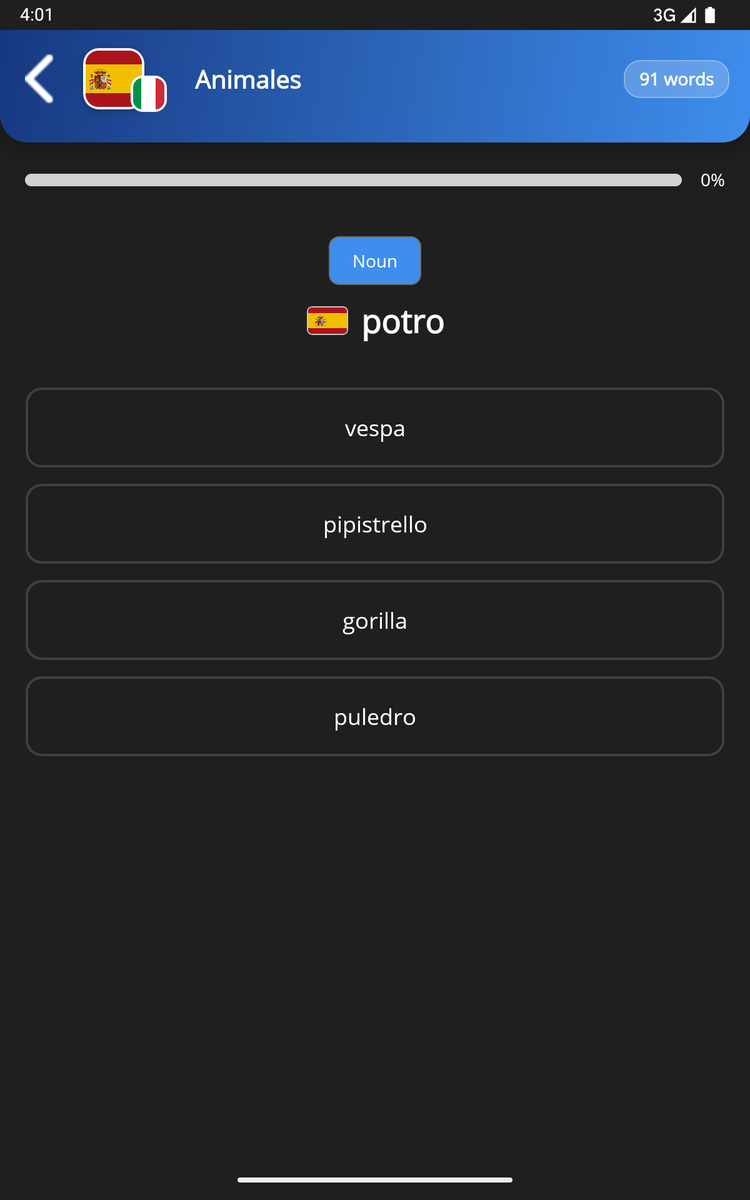
All 16 games are described on the app features page.
4. Keep useful links with a dictionary
The Links tab keeps pages, documents and videos that go with a dictionary: a grammar explanation, a song, the article you took the words from.
- Open the dictionary's Links tab and tap Add new link.
- Choose the Type of link: Document, Link, Video or Other.
- Give it a Title of the link (you can search by it later), paste the Link and add a short Description.
- Tap Save, or Save and another link.
Next to it, the Posts tab lists posts from this website in the dictionary's language, so there's always something to read at hand.
5. See your statistics
The Stats tab of each dictionary shows:
- Your words by type: how many nouns, verbs, adjectives and so on the dictionary holds.
- Activities in the last 7 days: how much you practised it, day by day.
- Experience gained in the last 7 days: the points your games earned.
For the bigger picture, the app also shows your right and wrong answers month by month, your practice streak, your level and your practice time. See See your progress.
6. Keep them tidy
- Edit or delete any word or dictionary at any time. Deleting a dictionary deletes the words in it.
- Duplicates. If you end up with two dictionaries with the same name and languages, My dictionaries offers to Merge them: words in both are kept once, with all their game answers.
- Search and group. In the app, a dictionary's words can be grouped by first letter, word type or language.
7. Free and Premium
- Free: as many dictionaries as you like, all the games with five lives a day, and up to 500 words on the website.
- Premium: unlimited games with no lives, no ads, unlimited AI tutor chat, and no word limit on the website. See pricing.
Start your first dictionary
Make one on the website now, or get the app to practise it with games.